Switching between a work laptop and a personal laptop can quickly turn a clean desk into a tangle of chargers, display cables, keyboards, webcams, and adapters. A USB-C KVM switch solves this problem by allowing two computers to share one set of monitors and USB peripherals. Some models also act as full docking stations, providing laptop charging, Ethernet, audio, and card-reader connections.
The difficult part is compatibility. A USB-C connector does not automatically support video, charging, or high-speed data. Dual-monitor behavior also differs between Windows and macOS, and some docks use DisplayLink software while others depend on native DisplayPort Alt Mode or Thunderbolt.
Table of Contents
Quick Comparison
| USB-C KVM switch | Best for | Display support | Laptop charging | Key limitation |
|---|---|---|---|---|
| StarTech 129N-USBC-KVM-DOCK | Best overall | Dual DisplayPort up to 4K 60Hz | 90W active / 45W standby | Requires DisplayLink drivers |
| AV Access iDock C20 | Best dual-HDMI value | Dual HDMI up to 4K 60Hz | Up to 60W per laptop | macOS extended-display limits vary |
| Cable Matters 201478 | Best single-monitor pick | One HDMI up to 4K 60Hz | Up to 100W one host or 85W each | Single external monitor only |
| TESmart CKS202-P23 | Best native dual-monitor setup | Dual HDMI up to 4K 60Hz | 60W per laptop | Requires USB-C hosts with MST for dual extended displays |
| Sabrent SB-TB4K | Best Thunderbolt performance | Up to 8K 60Hz single or dual 4K 60Hz | Up to 60W | Thunderbolt-certified hosts required |
Display resolution, refresh rate, charging power, and multi-monitor behavior depend on the laptop, operating system, GPU, cables, and connected displays. Verify the complete setup before purchasing.
1. StarTech 129N-USBC-KVM-DOCK — Best Overall
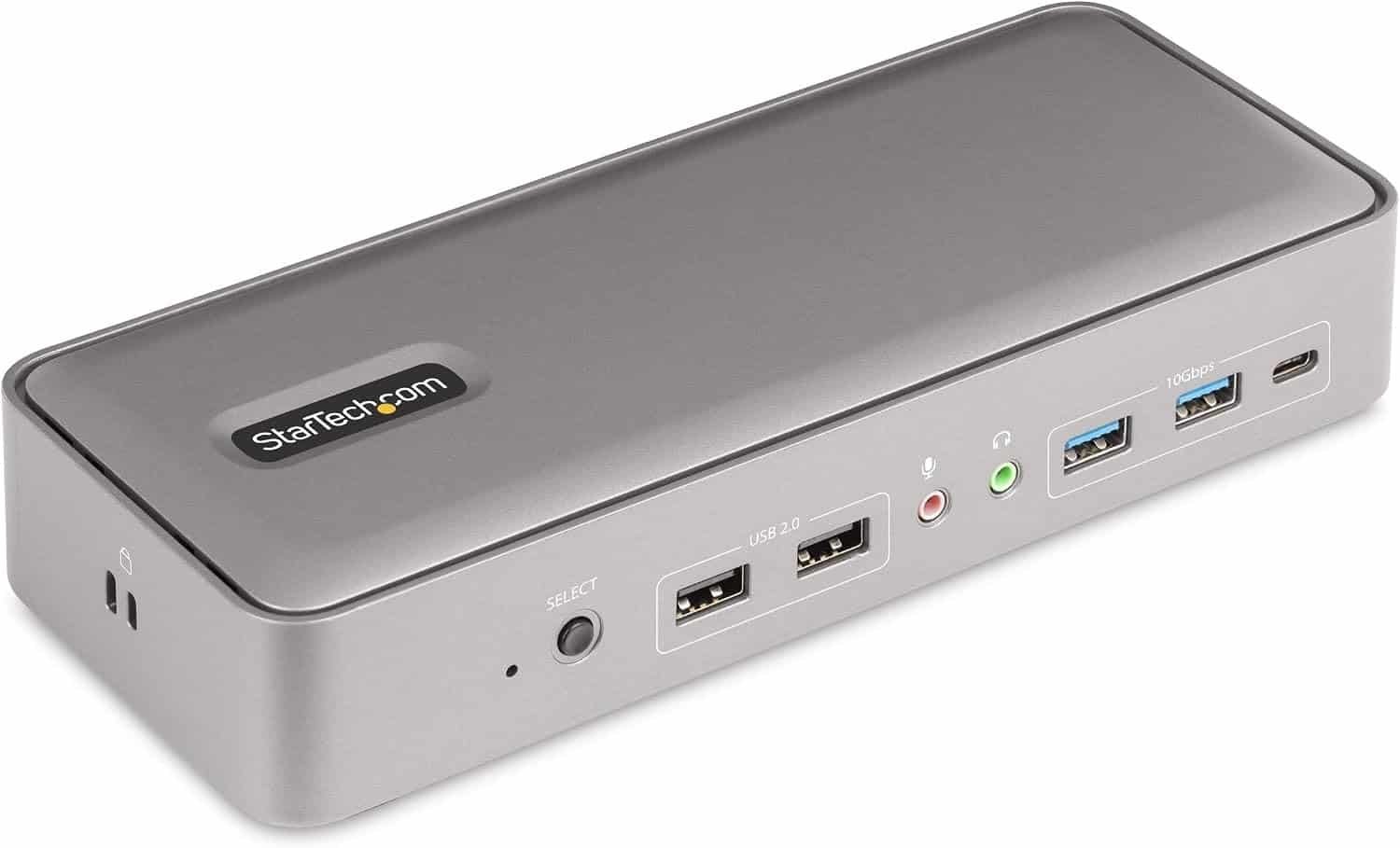
The StarTech 129N-USBC-KVM-DOCK is the most complete choice for a mixed-device professional workstation. It lets two USB-C laptops share two DisplayPort monitors, a keyboard, mouse, Ethernet connection, audio devices, and high-speed USB peripherals. Its included 180W adapter supplies up to 90W to the active laptop and 45W to the standby laptop, so both computers can remain charged.
The dock uses DisplayLink technology to support dual 4K 60Hz displays across Windows, macOS, ChromeOS, and Linux. That makes it useful for a base-model Apple M-series MacBook that normally supports only one external display. Windows and macOS users must install DisplayLink software.
 Pros
Pros
- Dual 4K 60Hz DisplayPort outputs
- Charges both laptops simultaneously
- Works with mixed operating systems
- Five shared USB ports plus Gigabit Ethernet
- Dedicated front switching button
- DisplayLink support for compatible base M-series MacBooks
Cons
- Premium price
- DisplayLink driver installation is required
- DisplayLink may not suit latency-sensitive gaming or protected video workflows
Best for: Professionals who need a dependable dual-monitor dock for two laptops, especially mixed Windows and Mac setups.
2. AV Access iDock C20 — Best Dual-HDMI Value
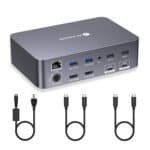
The AV Access iDock C20 combines a two-laptop KVM with a 12-in-1 dock. Each host connects through one full-featured USB-C cable, while two HDMI outputs drive compatible displays at up to 4K 60Hz. It also includes shared USB ports, Gigabit Ethernet, audio, and an SD card reader.
Both laptop ports can receive up to 60W of charging. EDID emulation helps preserve display information during switching, potentially reducing window rearrangement and monitor reconnection delays. A wired remote button allows the main dock to stay hidden under a desk.
This model relies on USB-C DisplayPort Alt Mode and MST for its dual-display operation. Many Windows laptops support that arrangement, but macOS does not natively support MST for two independent extended displays. Mac users should study the manufacturer’s compatibility table and expect different behavior depending on the exact model.
 Pros
Pros
- Two HDMI outputs up to 4K 60Hz
- Up to 60W charging for each laptop
- EDID emulation
- Gigabit Ethernet and SD card reader
- Remote switching button
Cons
- Dual extended displays are not universal on macOS
- 60W may be insufficient for power-hungry mobile workstations
- Requires full-featured USB-C host ports
Best for: Windows-based remote workers wanting dual HDMI monitors and useful docking ports at a competitive price.
3. Cable Matters 201478 — Best Single-Monitor Pick
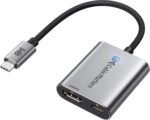
Not every hybrid worker needs two displays. The Cable Matters 201478 is a streamlined USB-C KVM for two laptops sharing one HDMI monitor, a keyboard, mouse, webcam, storage device, or other USB accessories. It supports HDMI video up to 4K 60Hz when both hosts provide DisplayPort Alt Mode.
Charging support is a standout feature. Cable Matters specifies up to 100W for one connected computer or up to 85W for each laptop when both are connected, subject to the laptops’ own limits. Switching options include the front button, RF remote, keyboard hotkey, and mouse hotkey.
This single-display design suits a compact home office. Confirm the included power supply because charging depends on the adapter and cable ratings.
 Pros
Pros
- Straightforward one-monitor design
- HDMI up to 4K 60Hz
- Strong USB-C charging capability
- Multiple switching methods
- Shares both USB-A and USB-C peripherals
Cons
- Supports only one external monitor
- Both hosts require video-capable USB-C or Thunderbolt ports
- Actual charging wattage depends on the system and power supply
Best for: Hybrid workers with one 4K monitor who prioritize easy switching and laptop charging.
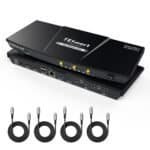
4. TESmart CKS202-P23 — Best Native Dual-Monitor Setup
The TESmart CKS202-P23 is designed specifically for two USB-C laptops and two HDMI monitors. It supports compatible dual displays up to 4K 60Hz, 60W charging for each laptop, Gigabit Ethernet, EDID emulation, and several shared USB connections.
Unlike a DisplayLink dock, this model uses each laptop’s native USB-C video. The host must support DisplayPort Alt Mode and MST with sufficient bandwidth. macOS generally mirrors rather than extends two displays through MST, making this a better match for Windows laptops.
The switch can be controlled using its front button, keyboard hotkeys, an IR remote, or mouse-wheel commands. Its higher price reflects the extensive feature set, but buyers should verify laptop charging and display compatibility rather than assuming every USB-C port will work.
 Pros
Pros
- Purpose-built for two laptops and two monitors
- Dual HDMI up to 4K 60Hz on compatible systems
- 60W charging for each host
- EDID emulation and Gigabit Ethernet
- Several convenient switching methods
Cons
- Expensive
- Dual extended displays depend on MST support
- Not ideal for most Mac dual-monitor setups
Best for: Windows users who want native dual-monitor output without DisplayLink software.
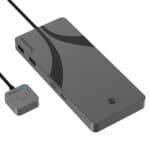
5. Sabrent SB-TB4K — Best Thunderbolt Performance
The Sabrent SB-TB4K provides three downstream Thunderbolt 4 ports at up to 40Gbps and four USB-A ports at up to 10Gbps, suiting fast storage, premium displays, and demanding peripherals.
Sabrent specifies up to 8K 60Hz for a single compatible display using Display Stream Compression, or up to dual 4K 60Hz on supported systems. It provides up to 60W Power Delivery and includes a 24V/5A power adapter. Video output may require an appropriate Thunderbolt or USB-C-to-DisplayPort adapter.
Compatibility deserves special attention. Sabrent says the switch is for Thunderbolt-certified host systems and warns that uncertified devices may be damaged. Charging behavior also differs from dual-charging docks, so users should read the manual and update firmware before installation.
 Pros
Pros
- Thunderbolt 4 bandwidth up to 40Gbps
- High-resolution and high-refresh display options
- Seven shared high-speed peripheral ports
- Aluminum enclosure
- Supports Windows and macOS
Cons
- Thunderbolt-certified hosts are required
- Up to 60W charging may not cover demanding laptops
- Display adapters may be needed
- Limited availability in some regions
Best for: Creative professionals and power users sharing fast Thunderbolt storage and premium displays.
How to Choose a USB-C KVM Switch
Confirm That Both USB-C Ports Support Video
USB-C describes the connector, not its capabilities. Each laptop port must support the video technology required by the KVM—usually DisplayPort Alt Mode, USB4, or Thunderbolt. A charge-only or data-only USB-C port will not send video to the monitor.
Understand Dual-Monitor Support
Native dual-monitor USB-C docks often use MST. This generally works well on compatible Windows systems, but macOS does not use MST to create two independent extended displays. A DisplayLink-certified dock can provide extended displays on more Mac models, although it requires software.
Match the Charging Wattage
Compare the KVM’s Power Delivery output with each laptop charger’s wattage. A thin business laptop may work comfortably at 60W, while a mobile workstation may charge slowly, reduce performance, or continue using its battery. Some switches charge only the active host; others charge both at different rates.
Check Resolution and Refresh Rate Together
A listing that advertises 4K does not necessarily provide 4K at 60Hz on two monitors simultaneously. Confirm the exact display count, resolution, refresh rate, and host requirements. Higher refresh rates and ultrawide resolutions consume additional bandwidth.
Inspect the Included Cables
Use the supplied host cables where possible. A replacement USB-C cable must support the required video, data rate, and charging power; many inexpensive charging cables do not carry high-speed data or video.
Setup Tips for Reliable Switching
- Update both laptops, the KVM firmware, and any required DisplayLink software.
- Connect the KVM’s power adapter before attaching laptops and monitors.
- Use certified, appropriately rated USB-C and display cables.
- Test one monitor and one laptop first, then add the second host and remaining peripherals.
- Connect high-bandwidth webcams and storage to the fastest shared ports.
- Disable laptop sleep behaviors that interfere with closed-lid operation.
- If windows rearrange after switching, enable EDID emulation where available.
- Keep the dock ventilated and avoid tightly bending USB-C cables near their connectors.
Frequently Asked Questions
Can one USB-C cable carry video, USB data, and laptop charging?
Yes, if the laptop, KVM, cable, and power adapter all support the necessary standards. The USB-C connector alone does not guarantee those features.
Will a USB-C KVM work with a MacBook and a Windows laptop?
Many will, but dual-monitor behavior is the deciding factor. DisplayLink docks offer broader mixed-platform support, while MST-based dual-monitor switches usually provide two independent displays only on compatible Windows systems.
Does switching happen instantly?
Keyboard and mouse control may switch quickly, but monitors can take several seconds to resynchronize. EDID emulation can reduce disruption, although timing still depends on the displays and laptops.
Is Thunderbolt necessary?
No. DisplayPort Alt Mode USB-C is sufficient for many office setups. Thunderbolt is most valuable for high-speed storage, demanding displays, and broader peripheral bandwidth.
Final Verdict
The StarTech 129N-USBC-KVM-DOCK is our best overall choice because it combines dual 4K displays, simultaneous charging for two laptops, broad operating-system support, and a complete shared dock. The AV Access iDock C20 provides strong dual-HDMI value for compatible Windows laptops, while the Cable Matters 201478 is the easiest recommendation for a single-monitor desk.
Choose the TESmart CKS202-P23 when native dual-monitor USB-C output and EDID emulation matter, or the Sabrent SB-TB4K when Thunderbolt bandwidth and fast shared peripherals are the priority.
Before ordering, verify both laptops’ video capabilities, charging requirements, operating-system limitations, and cable specifications. Those details matter more than the shape of the USB-C connector.